Yes. All templates are fully editable, so you can adjust fonts and colours if you’d like.
However, the included fonts and colour palettes have been chosen intentionally — they’re ATS-friendly, widely compatible, and designed to balance readability with visual clarity. If you choose to make changes, we recommend using commonly available fonts and keeping colours high-contrast to ensure your resume remains easy to scan and parse correctly.
Yes — Canva templates can be ATS-friendly when they’re designed carefully.
Canva sometimes gets a bad reputation for ATS compatibility because many templates rely on decorative elements, complex layouts, or poorly ordered layers. When those issues are avoided, Canva resumes can parse just as effectively as documents created in Word or Google Docs.
Darling Resume templates are intentionally designed in Canva using clear headings, logical structure, and properly ordered text layers to support ATS parsing. The layouts also avoid common pitfalls such as multi-column structures, icons, images, or decorative graphics that can interfere with screening.
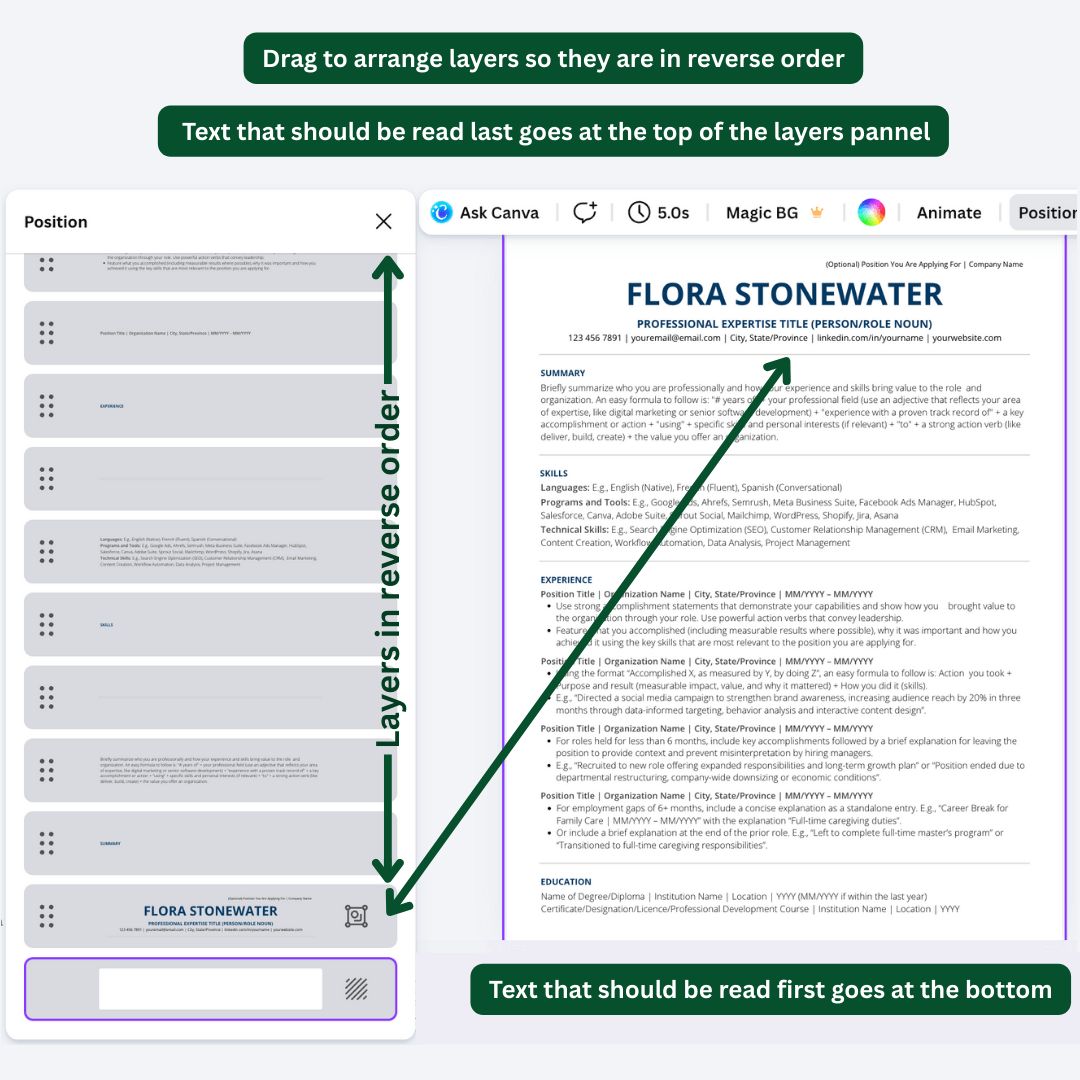
It’s important to maintain proper layer order in Canva, as this determines how ATS systems read the content. Layers need to be in reverse order for PDF export in design software like Canva due to how PDF generators handle stacking, transparency, and accessibility.
This means layers to be ordered from bottom to top in the sequence you want them read: text that should be read first goes at the bottom, and text that should be read last goes at the top.
The correct reverse layer ordering is already applied to the provided Canva resume templates. However, if you make any substantial changes (such as adding or duplicating sections) it's important to review and adjust the layer order to maintain readability.
This simple step allows Canva documents to parse correctly when exported to PDF to support ATS readability.
To check and adjust reading order in Canva:
Open Position → Layers
Arrange text layers so they follow the correct reverse order reading sequence
Text that should be read first should be at the bottom
Text that should be read last should be at the top
Canva also allows you to review and edit text semantics through its accessibility tools, which helps ensure headings and body text are interpreted correctly.
As long as layer order and structure are preserved, the Canva templates included in the Darling Resume Package can be expected to pass screening reliably.
There’s no single ATS standard, and many online “ATS checkers” are inconsistent and often tied to selling a scoring tool or paid service. Because of this, results can vary widely and don’t always reflect how real screening systems work.
The most reliable way to check ATS compatibility is to review the plain-text version of your resume. You can do this by copying and pasting your resume from a PDF into a plain text editor and confirming that the content appears in the correct order. If the text flows logically without missing or scrambled sections, the resume can generally be expected to pass screening.
As a best practice, ATS-friendly resumes typically avoid complex layouts such as columns, tables, or images, use widely supported fonts, and rely on clear section headings and consistent structure to guide both software and human readers.
All Darling Resume templates are designed with these principles in mind, using clean formatting and thoughtful structure to support accurate parsing across systems.
Microsoft Word’s desktop version comes with a limited set of fonts installed by default, so you may need to install the fonts used in the template before opening it.
Download the font files
Download the font used in the template from Google Fonts using the provided link.
Install the font
Before installing, make sure Microsoft Word is fully closed.
Double-click the font file and select Install using your system’s font installer.
Open the template in Word
Reopen Microsoft Word once the font is installed. The font will now be available in the document.
Note: If you’re using Microsoft 365 (online / browser version), the templates should work without installing fonts, as supported fonts are handled automatically.
You can use the resume templates without installing any fonts by working in Canva, Google Docs, or Microsoft Word (online). These platforms support the included fonts automatically, so no font installation is required.